Below is a step-by-step process for recovering your MyWisconsin ID password.
1
User Needs to Recover Password
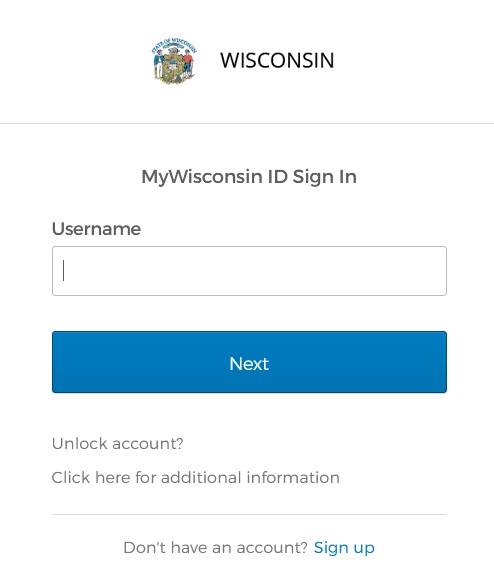
From the MyWisconsin ID sign-in page, enter your MyWisconsin ID username and select “Next”.
2
Initiate Password Reset
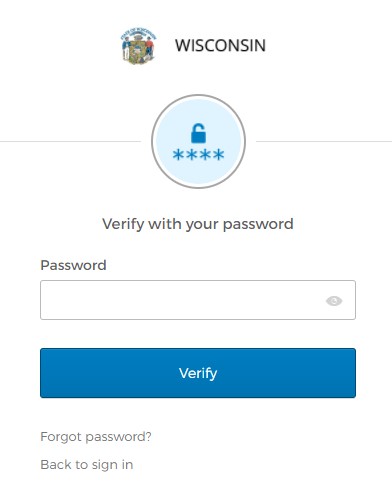
Select the “Forgot Password?” link.
3
Email Sent for Password Reset
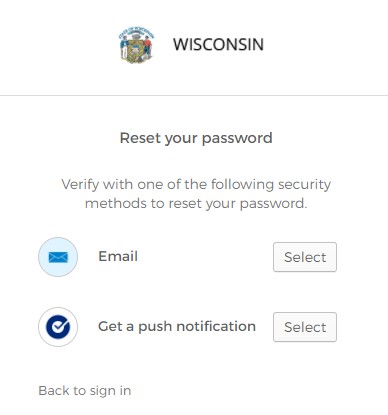
Click “Select” on the “Email” option. Check your email for the Reset Password link and code.
4
Password Reset Options
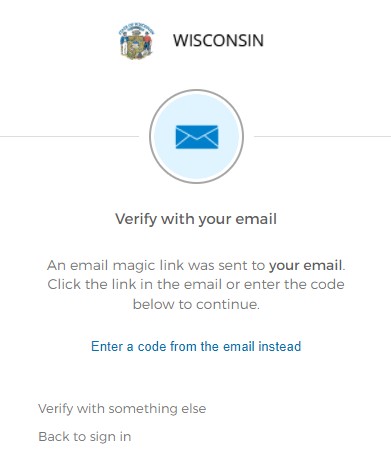
An email will be sent with a link and a code. You will have two options for recovering your password: clicking a link provided in the email or entering a code provided in the email.
5
Email Received
Email received with the password reset link and code. Click the “Reset MyWisconsin ID Password” button in the email and Go To Step 6 OR To use a code, Go To Step 7.
6
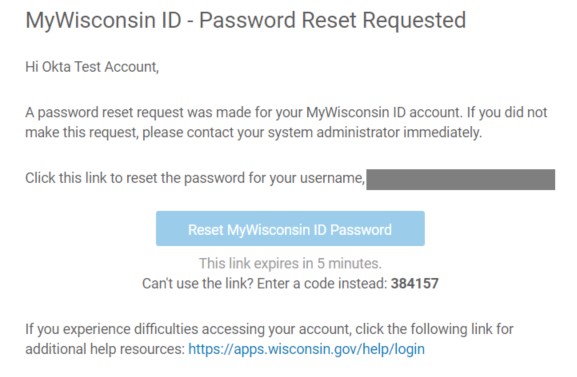
Verify Sign-In Notification (Link)
Select “Yes, it’s me”. Select the “Yes, it’s me” button. Go To Step 8.
7
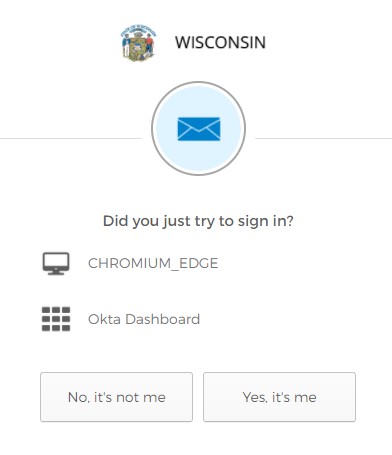
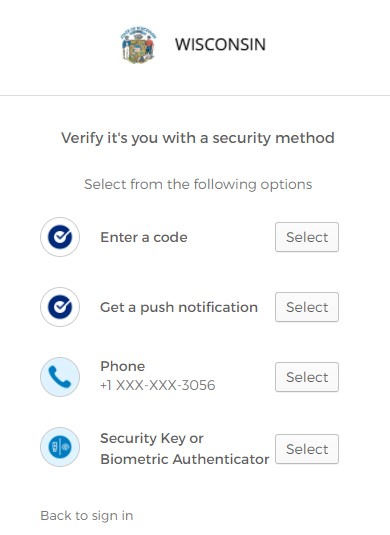
Complete MFA Verification
Pick one of your enrolled MFA methods and click “Select”. To change your password, you will need to complete an MFA verification. Select one of your MFA methods and complete the MFA verification.
8
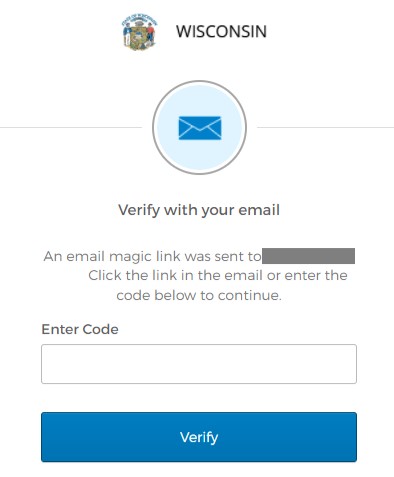
Account Unlock Verification
You will receive confirmed that your account has been unlocked. You have now successfully unlocked your account.
9
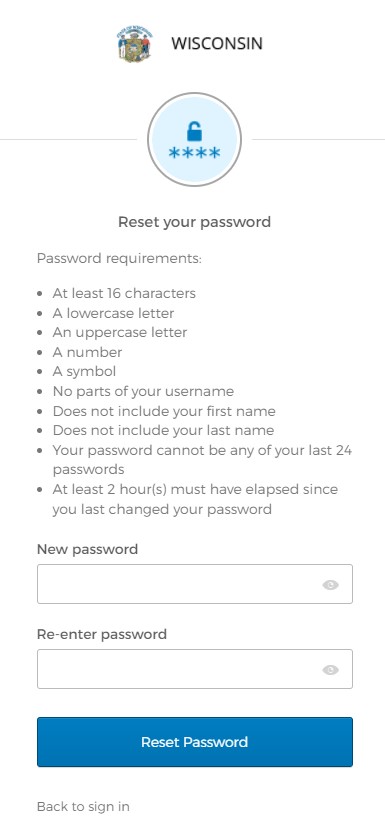
Enter New Password
Enter and verify your new password and click the “Reset Password” button. Enter a new password in the “New password” and “Re-enter password” boxes, and click the “Reset Password” button.
10
Password Change Confirmation
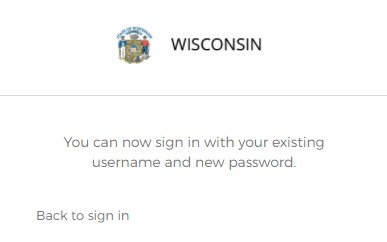
You will receive confirmation that your password has been updated. You have now successfully updated your password.