Below is a step-by-step guide to register for a new MyWisconsin ID account:
1
Create a MyWisconsin ID account
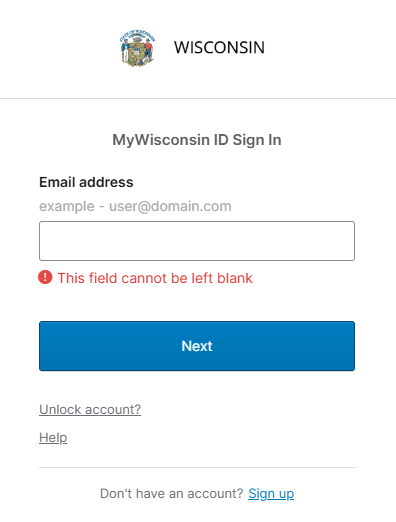
To create a MyWisconsin ID account, go to
apps.wisconsin.gov, and click the
Sign Up link.
2
Create a Login
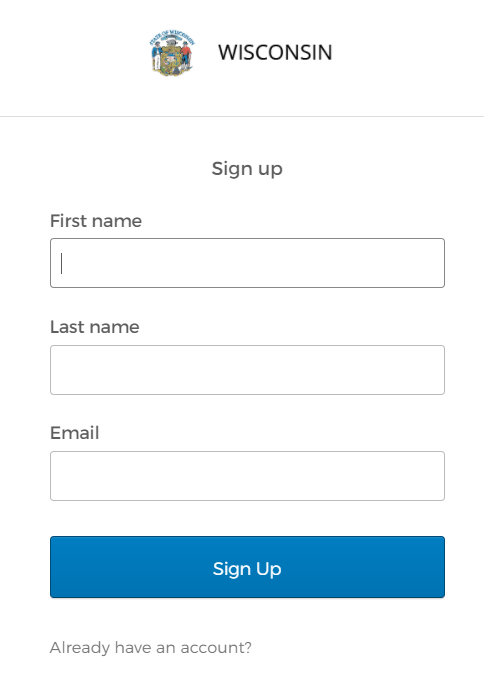
Enter your First Name, Last Name, and an Email address that will be used as your username, and click the Sign Up button.
3
Email Sent for Password Reset
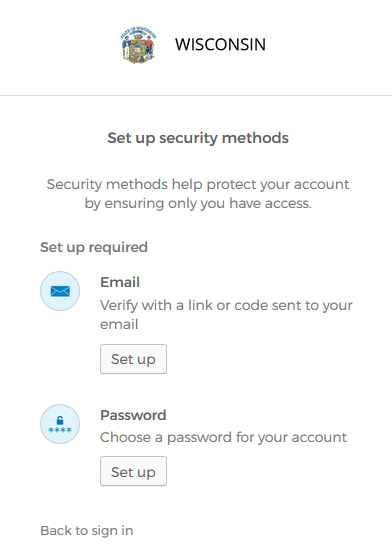
You will be prompted to verify your email address and set up a password on your account. Click the Set up button in the Email section to verify your email.
PLEASE NOTE: STEPS 3-8 ARE REQUIRED TO COMPLETE YOUR REGISTRATION PROCESS. IF YOU ARE UNABLE TO REGISTER, PLEASE CONTACT THE MYWISCONSIN ID SERVICE DESK FOR ASSISTANCE.
4
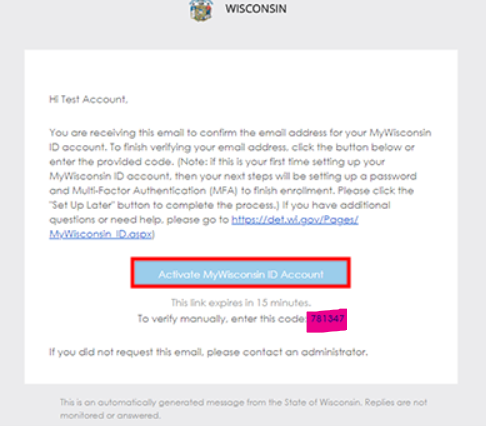
Activate Your MyWisconsin ID Account
Locate the activation email within your email and manually enter the code provided. If using a computer, in your browser use the activation link
5
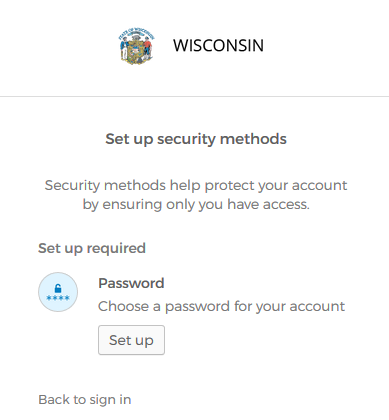
Set Up Your Account
After verifying your email address, click the
Set up button in the Password section.
6
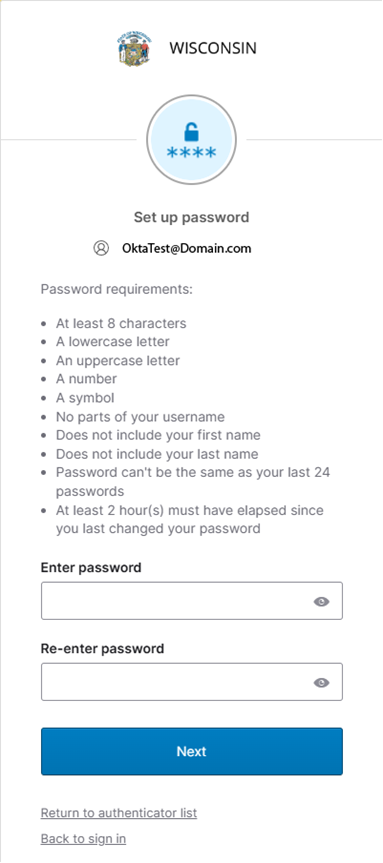
Choose a Password
Enter a new password for your account.
7
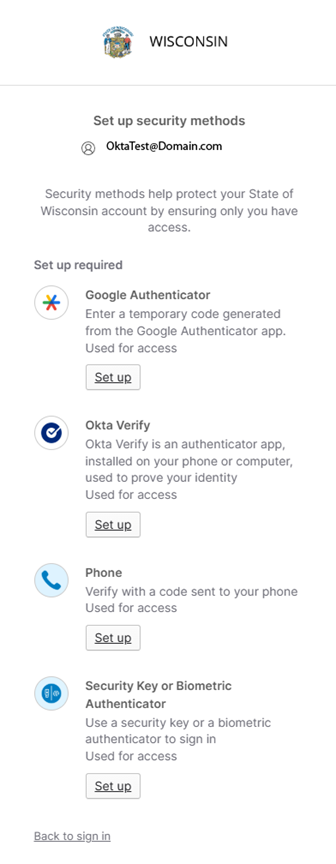
Select an MFA Method
After setting up a password for your account, you will be prompted to select at least one Multi-Factor Authentication (MFA) method. Click the
Set up button under your preferred method. Additional information on MFA can be found in the
MFA document.
8
Complete Your Account Registration
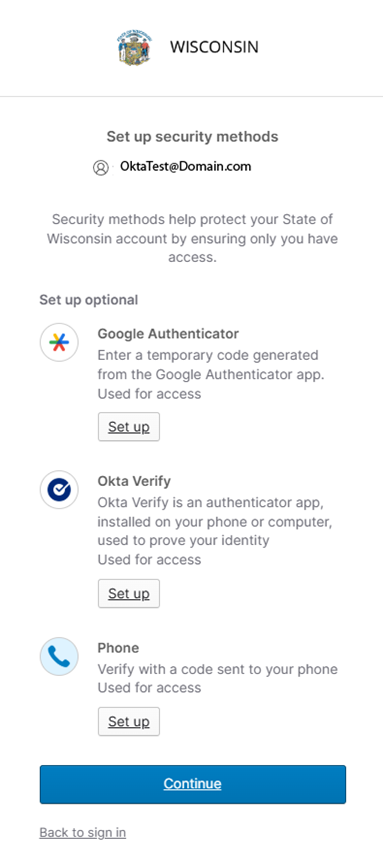
After setting up at least one MFA method for your account, you will be directed to the last screen to set up additional MFA methods if desired. Click
Continue to complete your registration.